
Manual · employers and HR teams
The employer area manual
How homeoffice.lu works for HR teams, step by step and with worked examples: from sign-up to the signed annual statement, including alerts, internal rules and billing.
No chapter matches. Try another word or write to us.
1Up and running in ten minutes
Sign-up, confirmation and first steps. The 30-day trial is free and needs no payment details.
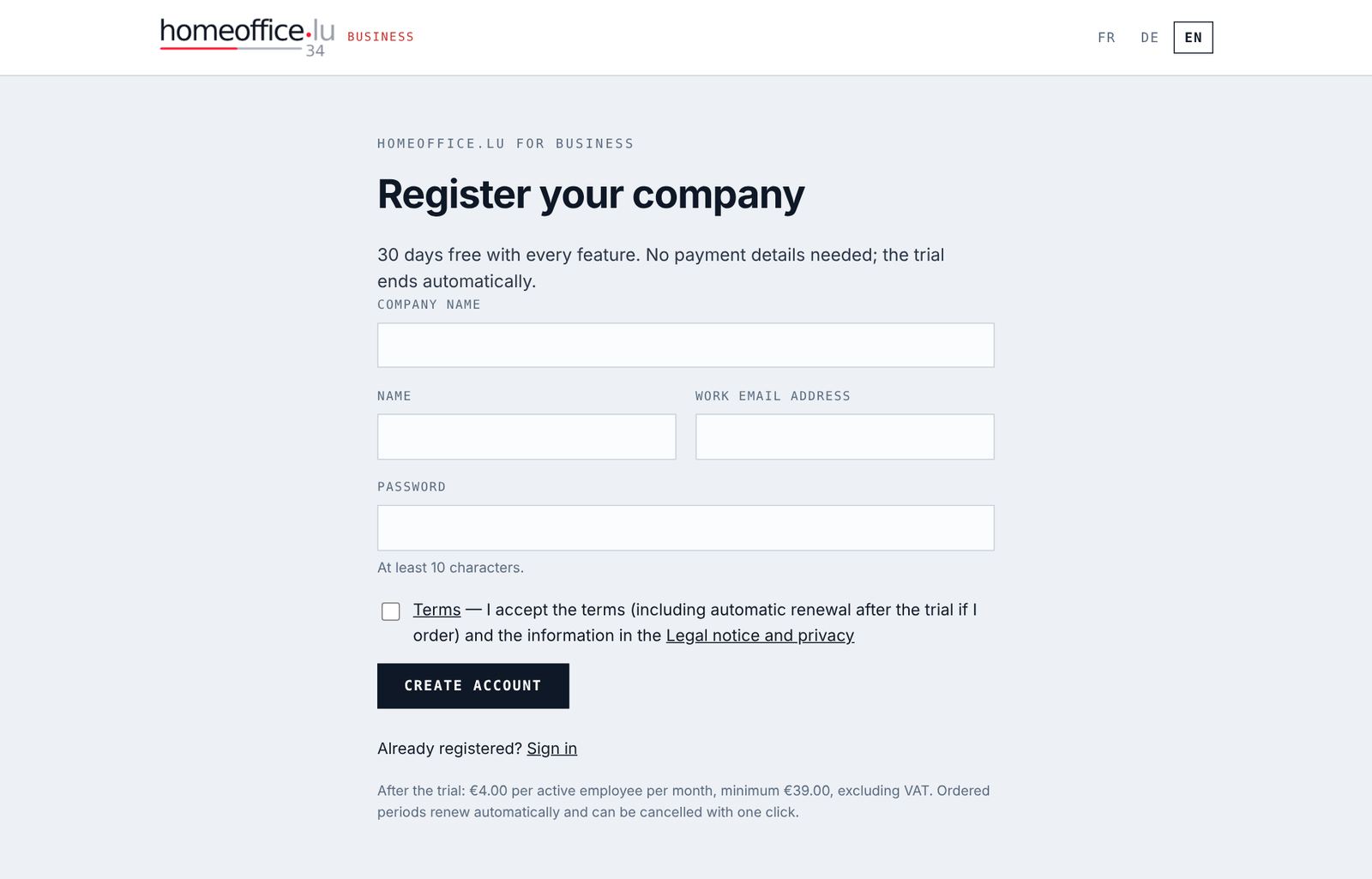
- Open the Employers & public bodies page on homeoffice.lu and click Try free for 30 days.
- Enter the Company name, your Name (optional), your Work email address and a Password of at least 10 characters.
- Accept the terms and click Create account.
- Open the email “Please confirm your account” and click the link. It is valid for 3 days. You are then signed in automatically.
The trial lasts 30 days from account creation, with every feature. It ends by itself: without an order, access becomes read-only and your data is kept. A reminder goes to the billing address 7 days before the trial ends.
The “Getting started” list
On the Overview, the Getting started card guides you through five steps and disappears once everything is done:
- Complete company details: billing address and VAT number (chapter 3).
- Add employees: one by one or by CSV from payroll (chapter 4).
- Record the first days: in the calendar, or a pattern such as “every Friday” (chapter 5).
- Bring employees on board: send the personal links so everyone records their own days (chapter 6).
- Set the rules: internal quota, alert threshold and weekly report (chapter 3).
Signing in, forgotten password
The Log in link is at the top of every page of homeoffice.lu. Forgot your password: Forgot your password? → enter your address → the link is valid for 2 hours. For security, the reply is the same whether or not the address exists.
2How homeoffice.lu calculates
The three counters (tax threshold, social security, internal rule), the statuses and the projection. Read it once: everything else follows from it.
Each recorded day is one working day outside Luxembourg. There are four types: Home office (HO), Business trip (BT), Training (TR) and Other work abroad (OT). Days in Luxembourg, holidays and sick days are not recorded: they stay empty.
| Counter | Who | What counts | Limit |
|---|---|---|---|
| Tax threshold | Residents of FR, BE, DE | All 4 types | 34 days × working time × share of the year employed, rounded down |
| Social security (CCSS) | All non-residents | Home office only | 49.9 % of working days (230 by default → 114 days) |
| Internal rule | If you set one | Home office only | Your quota in %, per week, month or year |
The tax threshold, with examples
| Employee | Calculation | Threshold |
|---|---|---|
| France, 100 %, whole year | 34 × 100 % | 34 |
| Belgium, 80 % | 34 × 0.8 = 27.2 | 27 |
| Germany, 100 %, joined 1 July | 34 × 184/365 = 17.1 | 17 |
| France, 80 %, left 30 June | 34 × 0.8 × 181/365 = 13.49 | 13 |
| Luxembourg resident | — | no threshold |
The start and leaving dates in the employee record reduce the threshold and working days automatically. Future days already recorded (a planned business trip, for instance) count too: the counter shows what will really be left.
Social security
Only home office counts. The limit is 49.9 % of the employee’s working days: the company value (230 by default), pro rata for a mid-year start or leaving date, or an individual value in the employee record.
The internal rule (home office quota)
Many employers cap home office, for example at 60 % of working time as in the public sector. Set the quota under Settings → Rules and alerts and choose the period: per week, per month (average) or per year (average). An individual quota in the employee record replaces the company one.
Per week or month, homeoffice.lu compares each period with the Luxembourg working days in that period, multiplied by working time and quota:
| Case (60 % per week rule) | Allowed | Recorded | Result |
|---|---|---|---|
| Full-time, 5-day week | 5 × 60 % = 3 | 3 HO | compliant |
| Full-time, 5-day week | 3 | 4 HO | 1 week over |
| Full-time, week with a public holiday | 4 × 60 % = 2.4 | 3 HO | 1 week over |
| Part-time 80 %, 5-day week | 5 × 0.8 × 0.6 = 2.4 | 2 HO | compliant |
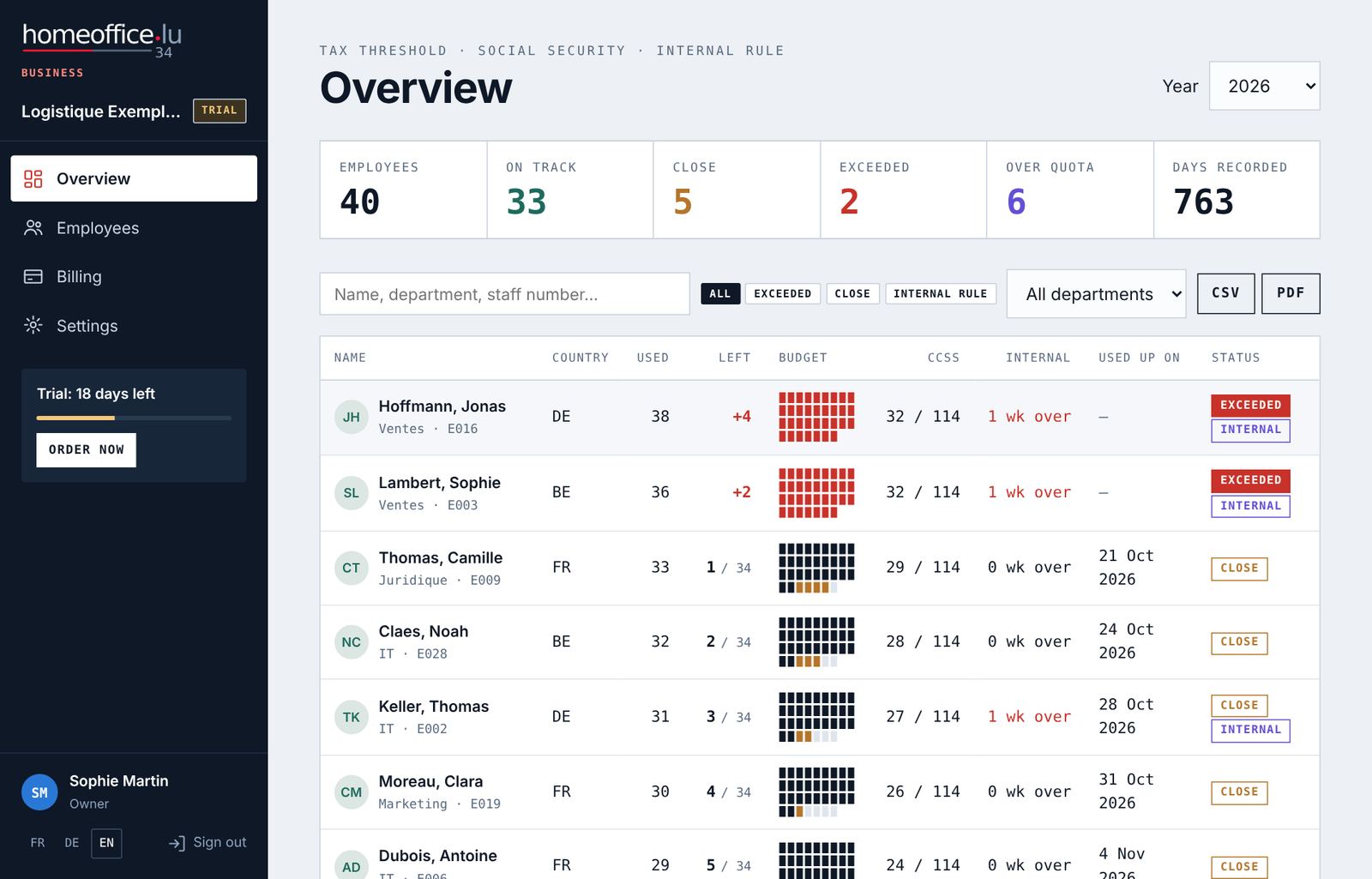
The internal rule does not change the tax status; it adds the INTERNAL label and the “x wk over” figure in the overview.
The statuses
| Status | Meaning |
|---|---|
| On track | More days left than the alert threshold (5 by default). |
| Close | 5 days or fewer left (alert threshold adjustable from 0 to 20). |
| Limit reached | Exactly 0 days left: the next day outside Luxembourg means going over. |
| Exceeded | Tax threshold exceeded, or social security limit exceeded. |
| No threshold | Luxembourg resident: neither tax threshold nor CCSS limit. |
The “Used up on” projection
For the current year, homeoffice.lu estimates the date on which the employee will have used up their threshold, based on their Planned home office days per week (employee record, 1 by default).
Luxembourg public holidays (including 9 May and 26 December) are marked in the calendars and excluded from working days.
3Setting up the company and rules
Billing details, internal quota, alerts and weekly report.
Settings → Company
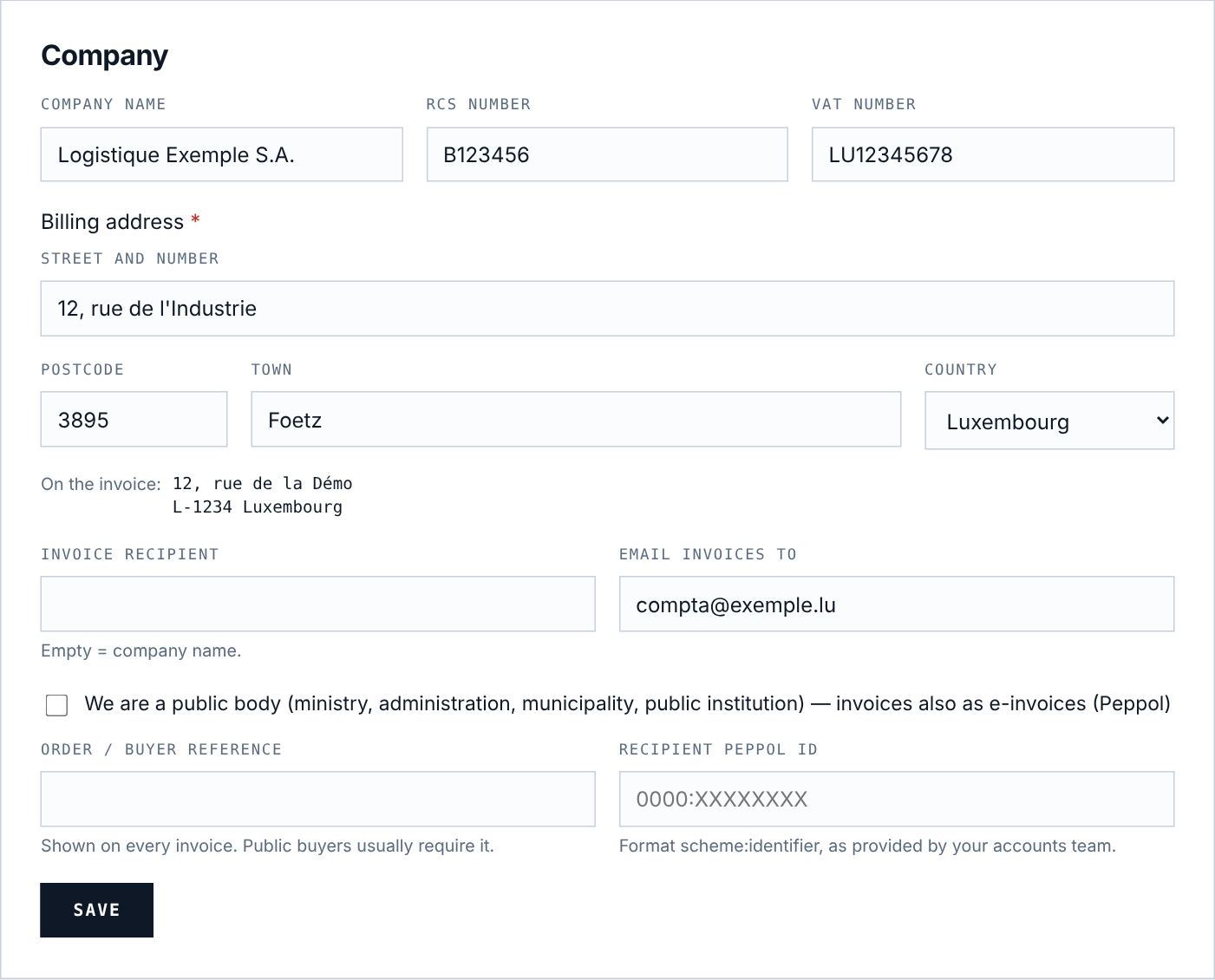
- Company name, RCS number, VAT number.
- Billing address: required to place an order. The street must include a number; the postcode is checked by country (4 digits in Luxembourg and Belgium, 5 in France and Germany). A preview “On the invoice” shows the result.
- Invoice recipient (empty = company name) and Email invoices to (for example your accounts team).
- For public bodies: tick the Peppol box and enter the Order / buyer reference and the Recipient Peppol ID. Every invoice is then also available as XML (Peppol BIS Billing 3.0).
Settings → Rules and alerts
| Setting | Effect | Default |
|---|---|---|
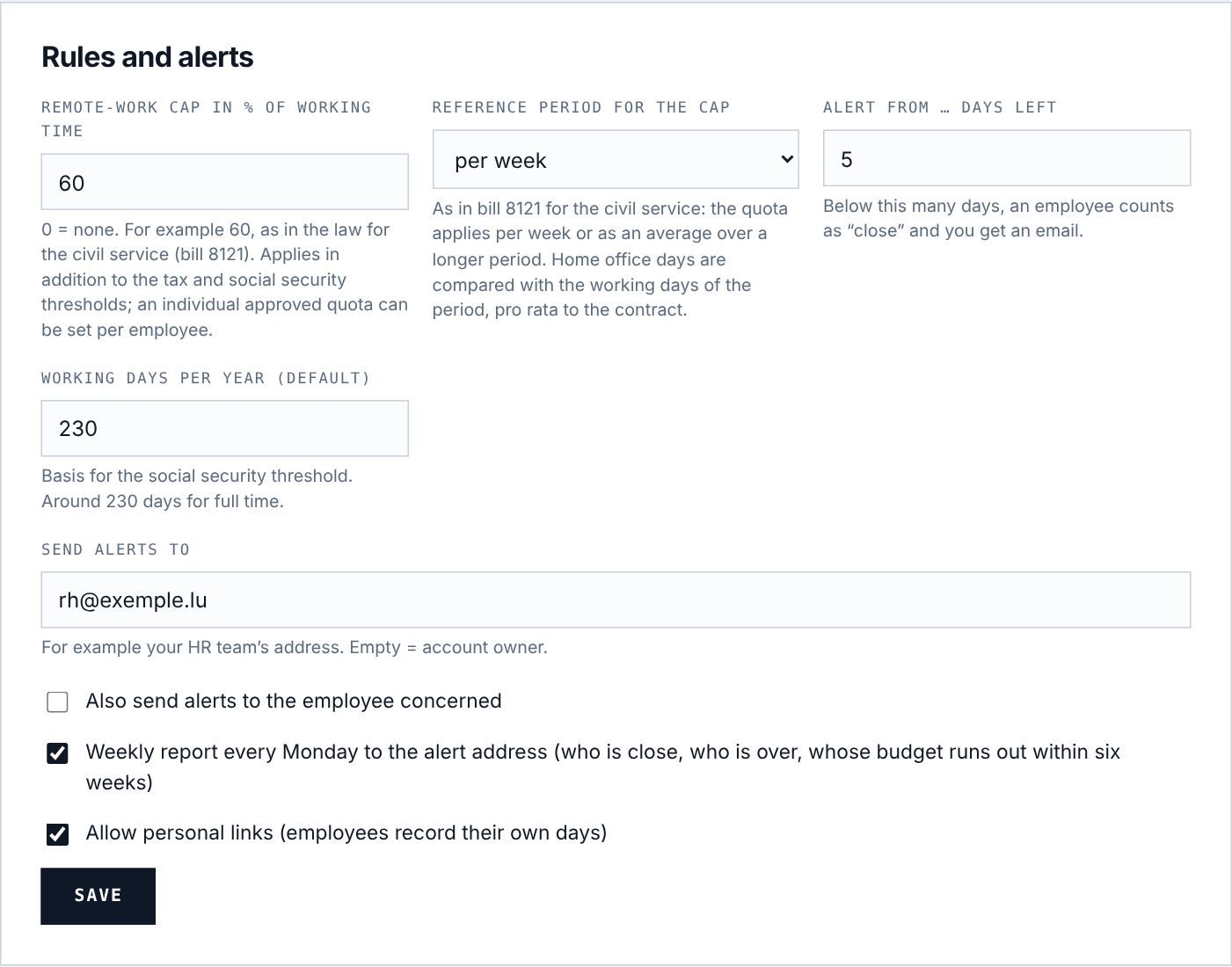
| Remote-work cap in % of working time | Internal quota (0 = no rule). | 0 |
| Reference period for the cap | Per week, per month (average) or per year (average). | week |
| Alert from … days left | Threshold for the “Close” status and for alerts (0 to 20). | 5 |
| Working days per year (default) | Basis for social security and the internal rule. | 230 |
| Send alerts to | Address for alerts and the report. Empty: alerts to the owner, report to the billing address. | sign-up address |
| Also send alerts to the employee concerned | The employee gets a copy of their own alerts. | no |
| Weekly report every Monday | Summary by email on Monday morning. | yes |
| Allow personal links | Employees record their own days (link, QR code, app). | yes |
4Managing employees
Add, import from payroll, edit, archive and delete.
Adding an employee
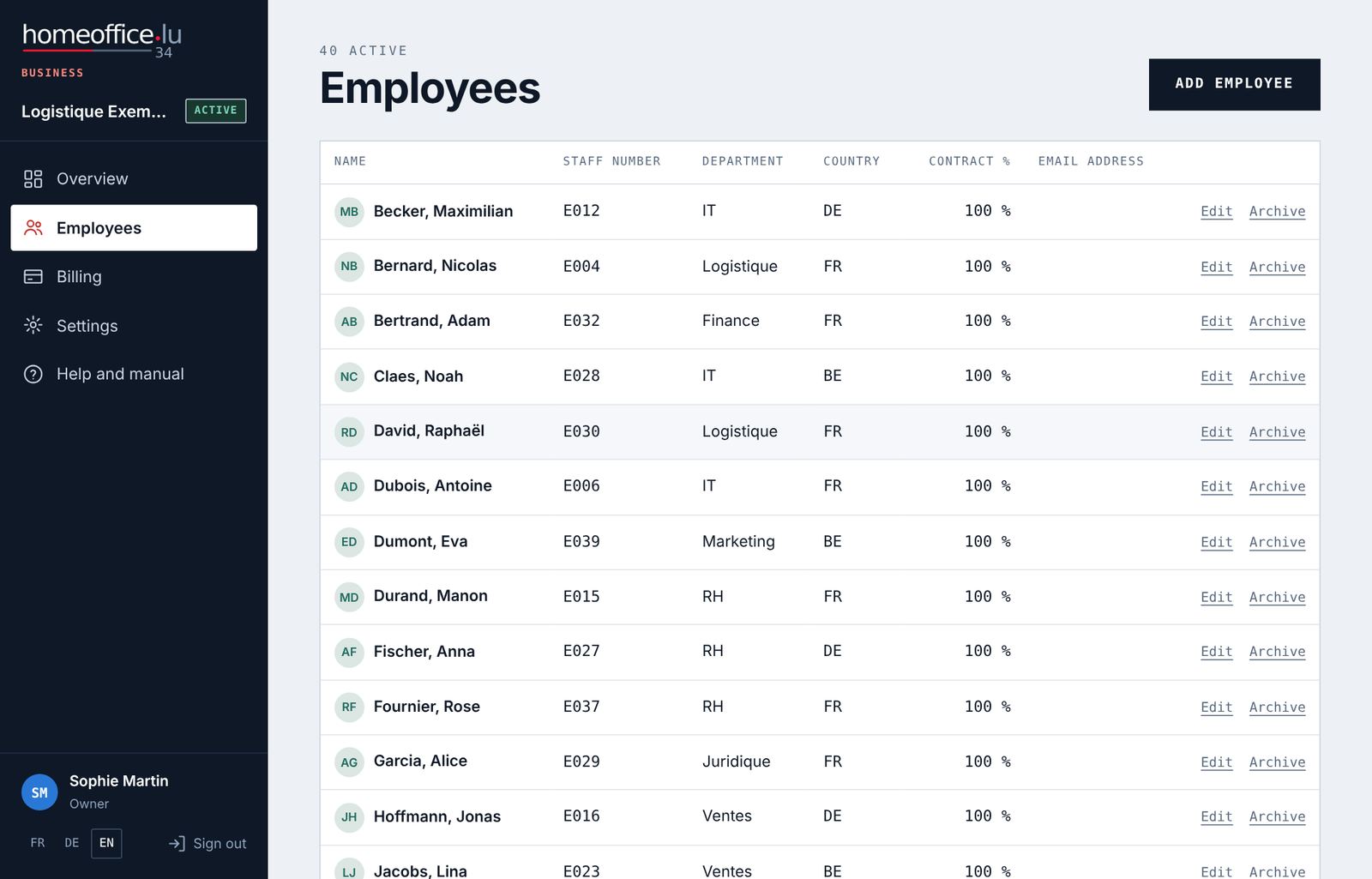
Menu Employees → Add employee. Only first name and last name are required.
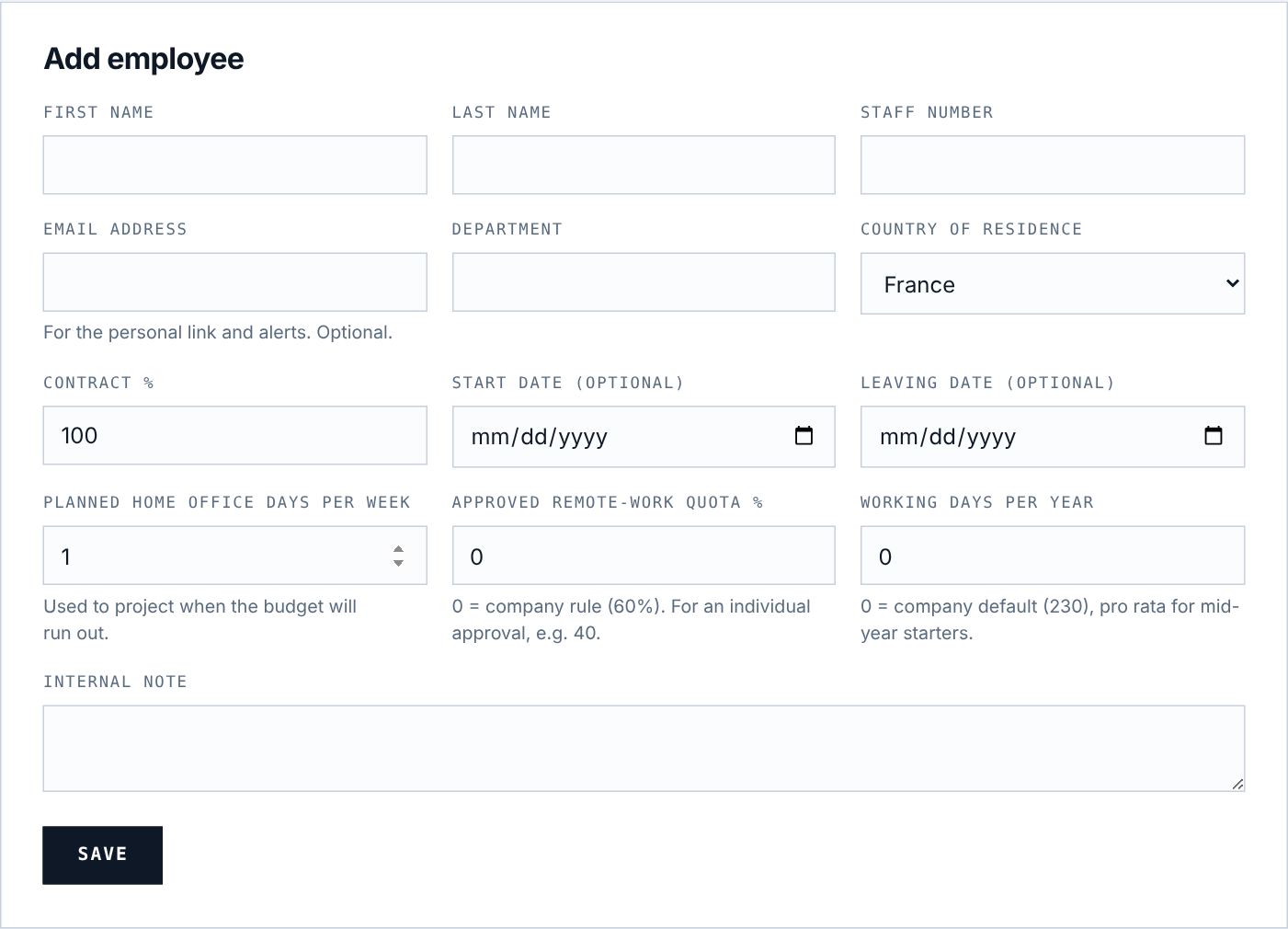
| Field | What it is for |
|---|---|
| Staff number | Your payroll number. Also used to recognise the employee on import. |
| Email address | Optional. Needed to send the personal link and alerts to the employee. |
| Department | To filter the overview (Sales, IT…). |
| Country of residence | France, Belgium, Germany, Luxembourg, other country. Sets the thresholds. |
| Contract % | Contractual working time, 1 to 100. Reduces every threshold. |
| Start date / Leaving date | Optional. Reduce the thresholds pro rata and block days outside employment. |
| Planned home office days per week | 0 to 5, in half days. Used for the “Used up on” projection. |
| Approved remote-work quota % | Individual quota (0 = company rule). |
| Working days per year | Individual value (0 = company value, pro rata). |
| Internal note | Visible to HR only. |
Importing from payroll (CSV)
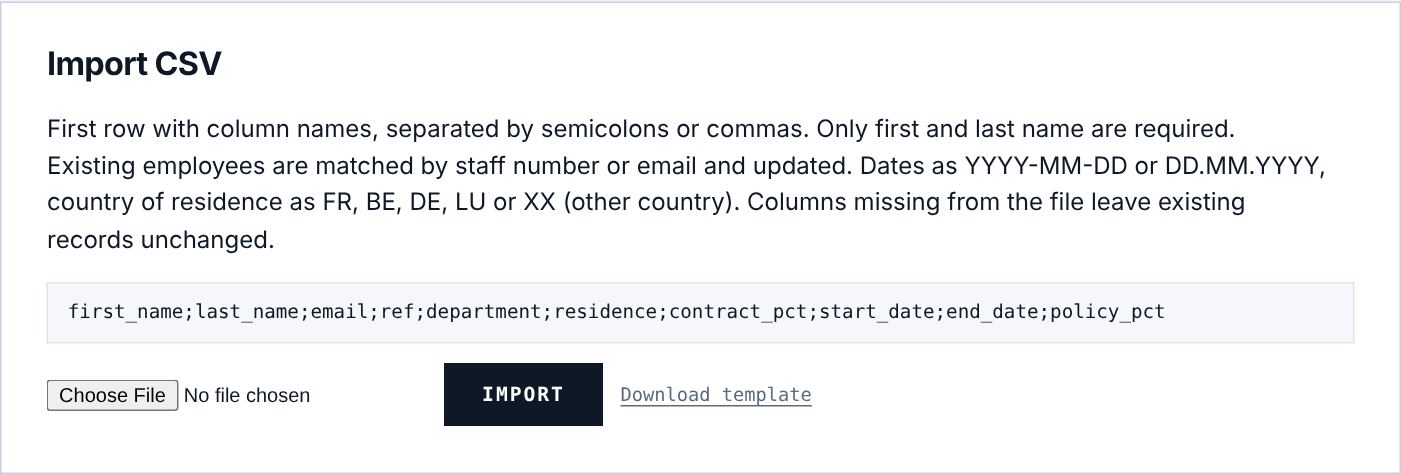
- Click Download template to get a file with two sample rows.
- Export the list from your payroll software or fill in the template. Semicolon or comma separator; UTF-8 or Windows (Excel); 2 MB at most.
- Choose the file and click Import. The result is shown: new, updated, skipped.
The first row must contain the column names. Only first_name and last_name are required:
- residence: FR, BE, DE, LU or XX (other country); three-letter codes (FRA, BEL, DEU, LUX) are also recognised. A row with an unknown country is skipped. Dates: YYYY-MM-DD or DD.MM.YYYY.
- An existing employee is recognised by staff number, otherwise by email, and updated rather than duplicated. Only the columns present in the file are updated: a missing column leaves the record unchanged. So you can re-import every month.
- Incomplete rows are skipped and counted as “skipped”.
Leaving, archiving, deleting
- An employee leaves during the year: enter the Leaving date. Their thresholds are reduced pro rata and their history stays complete. The leaving date alone does not stop billing: archive them once the year is closed.
- Archive: the employee disappears from the overview and exports, is no longer billed, and their personal link stops working. Their days are kept. Reactivate brings them back.
- An archived employee’s calendar can no longer be edited: reactivate them to correct a day.
- Delete only appears after archiving and permanently removes the employee, their days and photo.
5Recording days
The year calendar, recording by click or drag, and regular patterns.
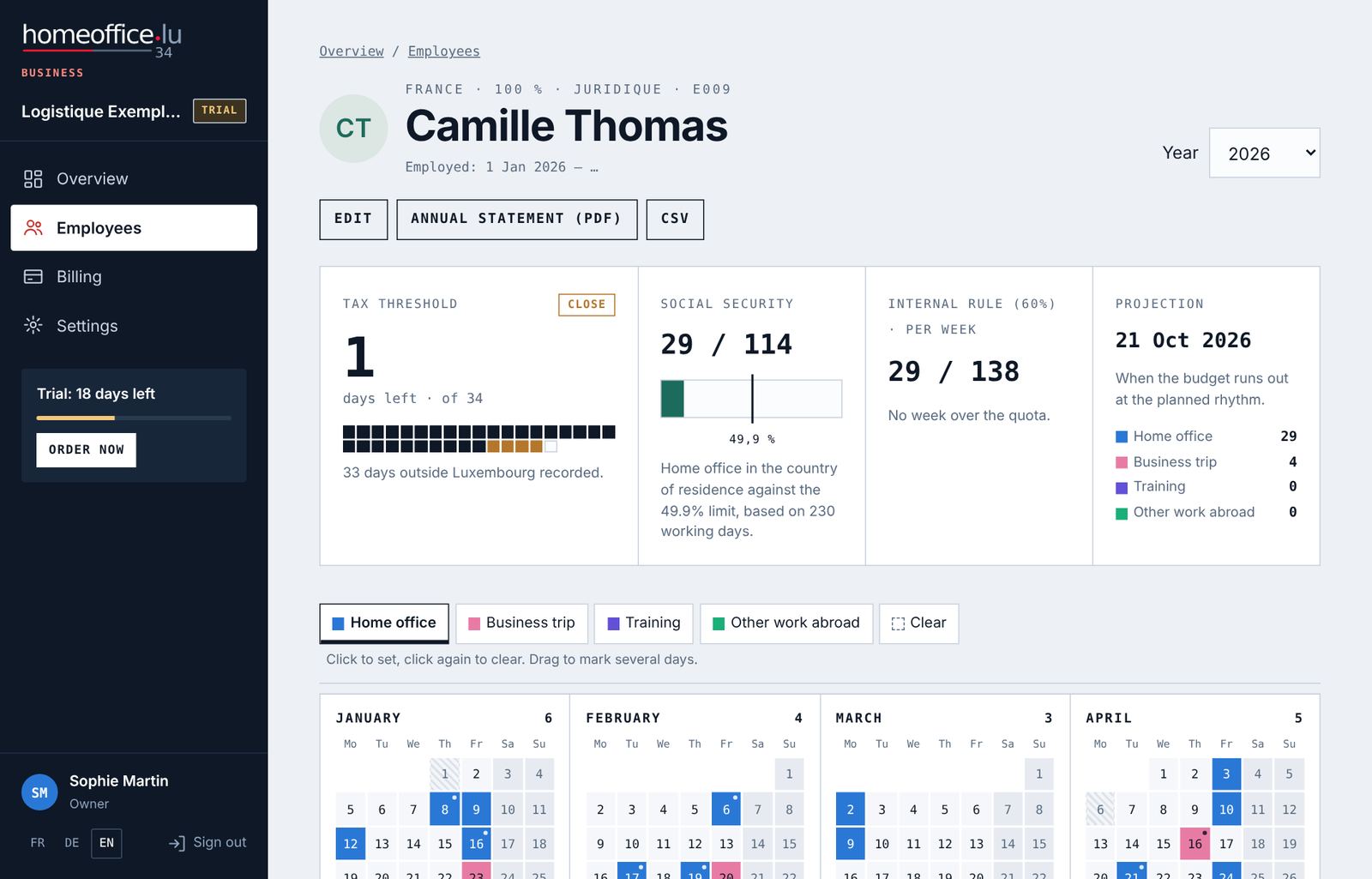
Click a name in the overview or the employee list: the record opens with the counters and the year calendar.
The calendar
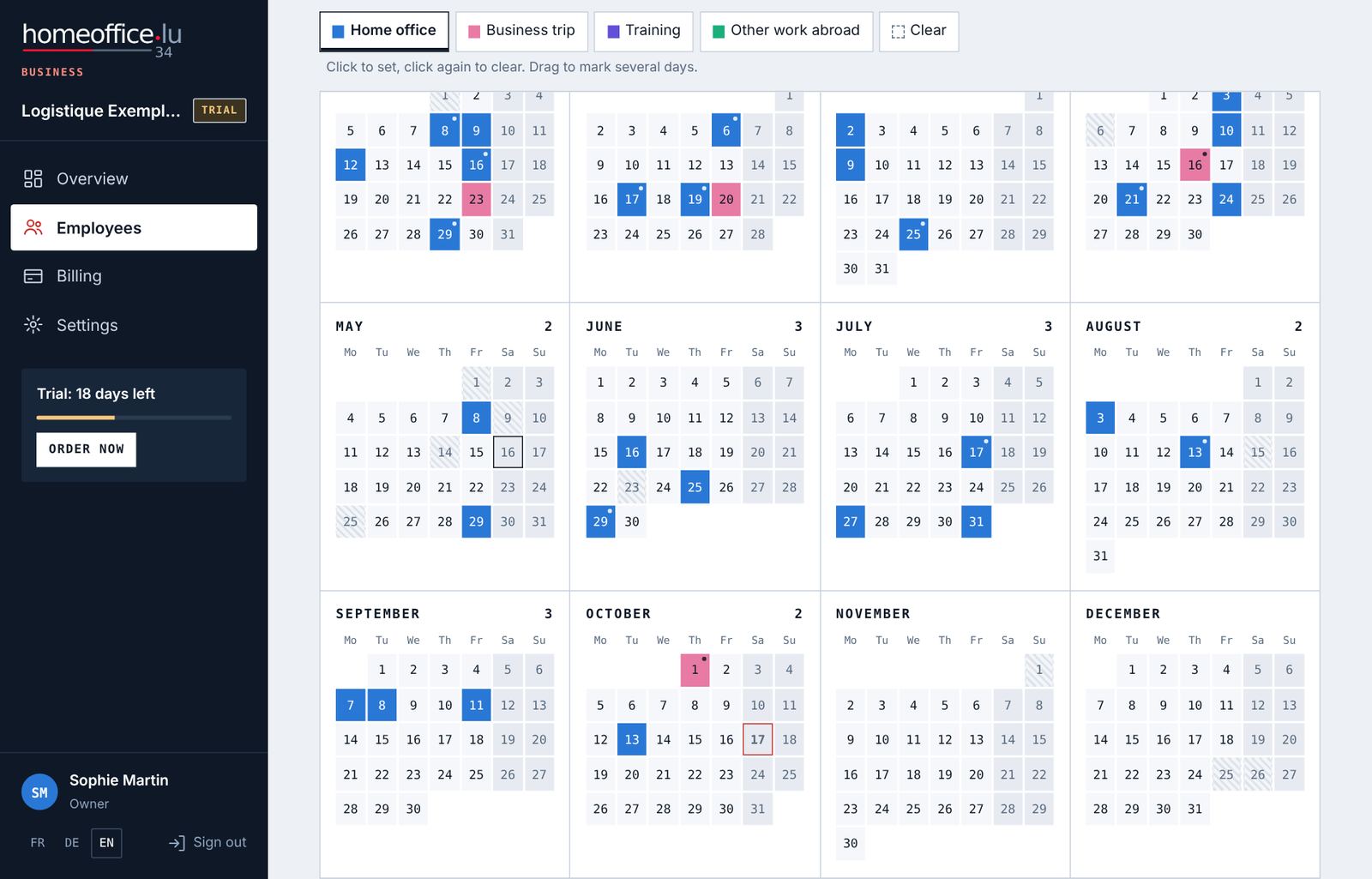
- Choose the Type of day in the palette: Home office, Business trip, Training, Other work abroad or Clear.
- Click a day to mark it, click again to clear it. Drag across several days to mark them in one go. With the keyboard: Enter or Space.
- Saving is automatic; “Saved” appears. The counters update immediately.
- Weekends and Luxembourg public holidays are greyed out (the holiday’s name appears on hover), but can still be recorded if someone really worked that day.
- Days before the start date or after the leaving date are blocked.
- Each month shows its total.
- A dot on a day means it was recorded by the employee (personal link or app).
Recording a regular pattern
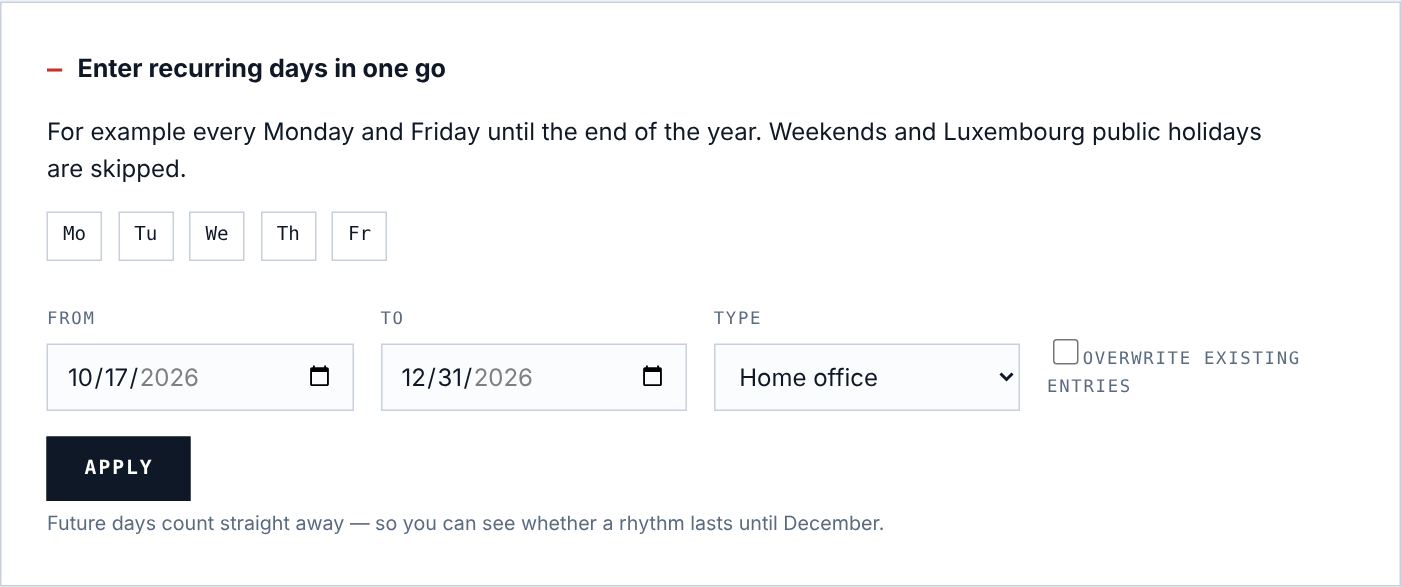
- Without Overwrite existing entries, only empty days are filled. Tick the box to overwrite.
- With the Clear type, the period is emptied (for example to cancel a planned pattern).
Who recorded what
Each day keeps its source: HR (employer area), employee (personal link) or app, with author and time. HR entries take precedence: an employee cannot change or delete a day entered by HR, neither in the app nor through their link. HR, on the other hand, can correct every day.
6Bringing employees on board
Personal link, QR code and app: everyone records their own days, HR stays in control.
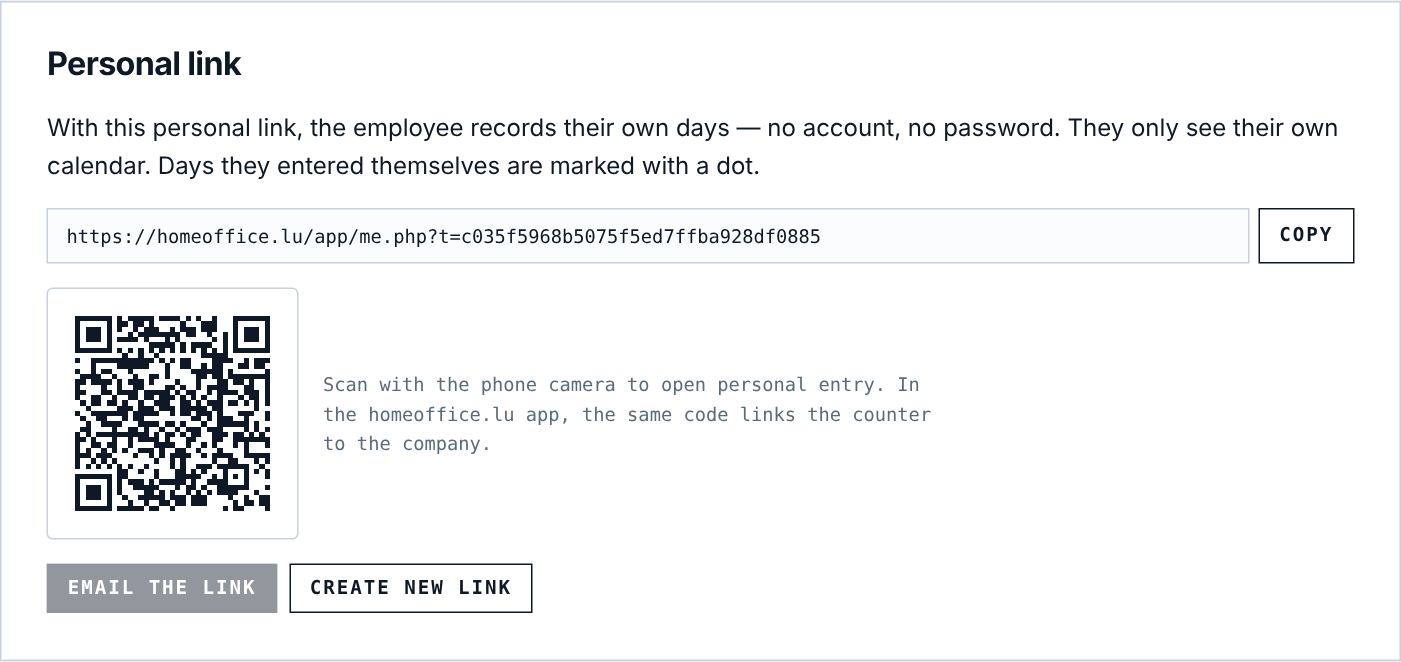
Each employee has a personal link that opens their own calendar, with no account or password. The same code also links the free homeoffice.lu – 34 days app to your company.
Sending the links
- To everyone at once: Employees → Send links to everyone. Every employee with an email address gets their link.
- To one person: employee record → Email the link, or Copy and send it from your own mailbox.
- In person: show the QR code; the employee scans it with their phone camera or in the app.
What the employee sees
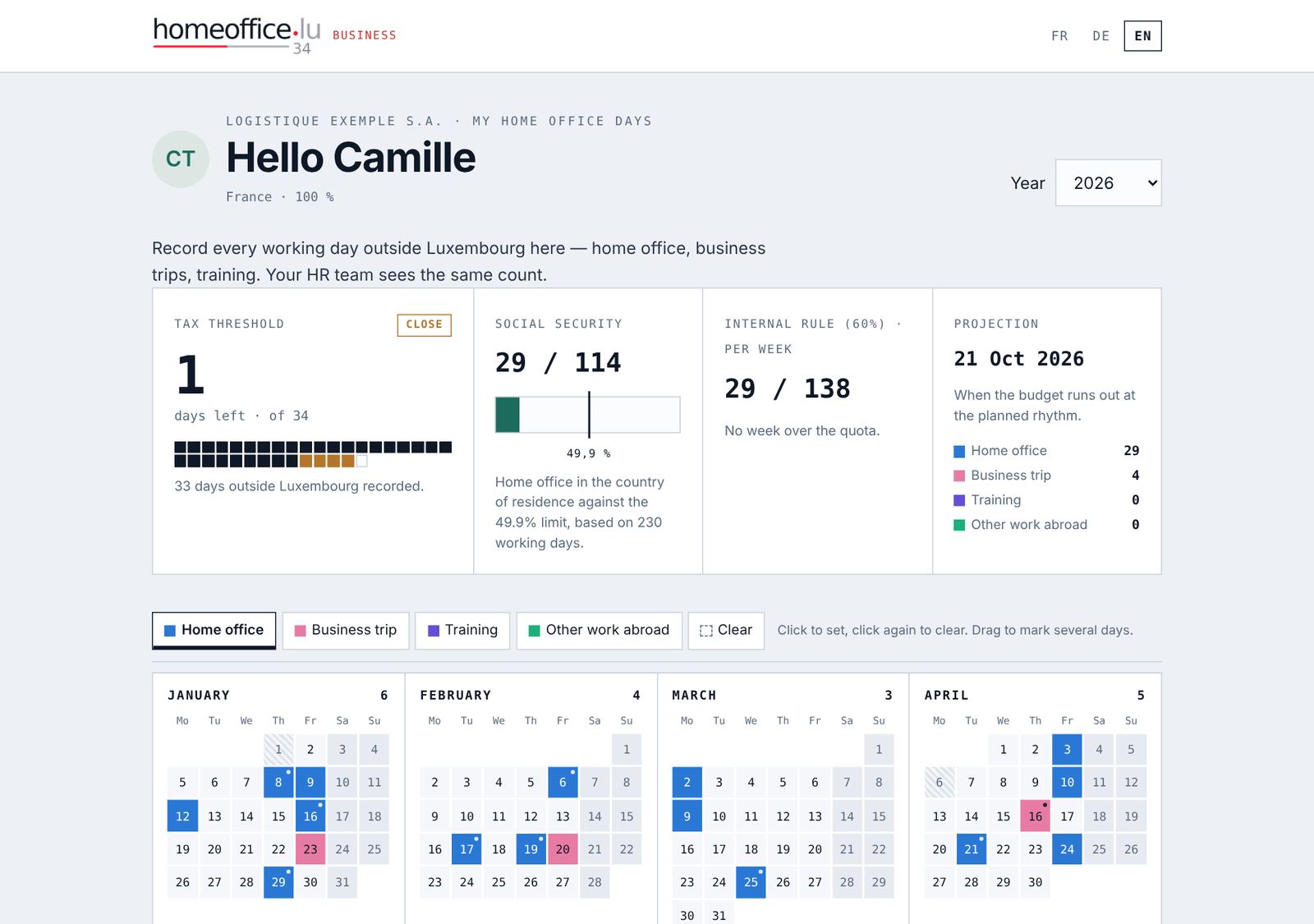
- Their counters: tax threshold, social security, internal rule.
- Their calendar, where they record their days (including a regular pattern).
- Their Annual statement (PDF).
- They see neither other employees nor payroll data, and cannot change their record.
The app
With the app, the employee answers a notification every evening; their confirmed days reach you automatically (date and type, never location). HR entries take precedence: in a conflict, the app takes HR’s version. Days recorded through the app also carry a dot in your calendar.
Link lost or passed on
Employee record → Create new link. The old one stops working immediately (including in the app, which has to be linked again). Links don’t expire on their own; they stop working if the employee is archived or if you turn off personal links.
7Overview, alerts and report
See at a glance who is getting close to the threshold, and get warned in time.
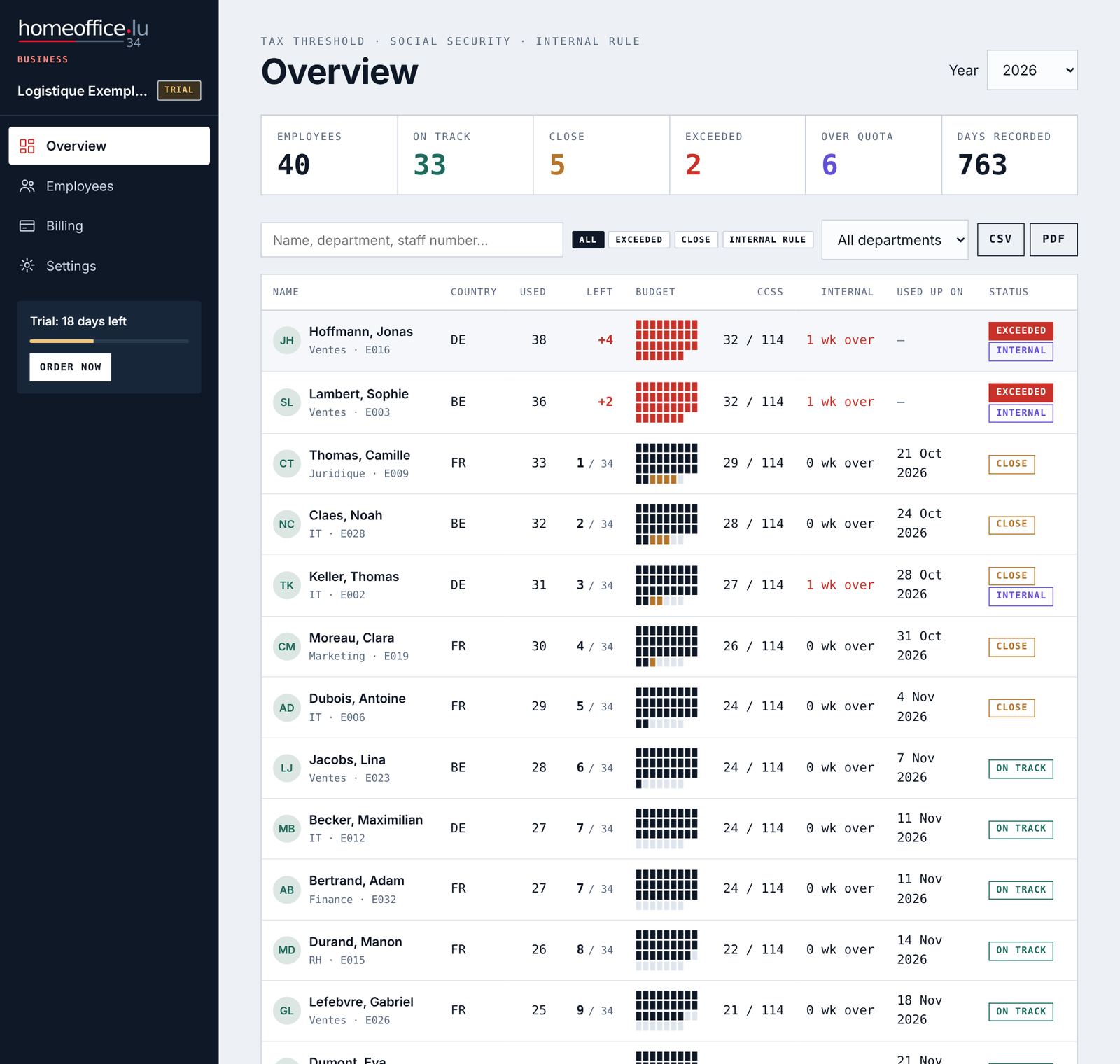
The key figures
- Active Employees; On track; Close (5 days or fewer, or limit reached); Exceeded.
- Over quota: employees with at least one period above the internal rule (if you have one).
- Days recorded: all days of the year, including future ones.
The table
Sorted by urgency: exceeded first, then limit reached, close, on track. Columns: Used (of which planned), Left (red “+4” if exceeded), Budget (one box per day, the last 5 in alert colour), CCSS, Internal, Used up on and Status.
Filter with the search box (name, department, staff number), the Exceeded, Close and Internal rule buttons and the department list. Change the year at the top right.
The charts
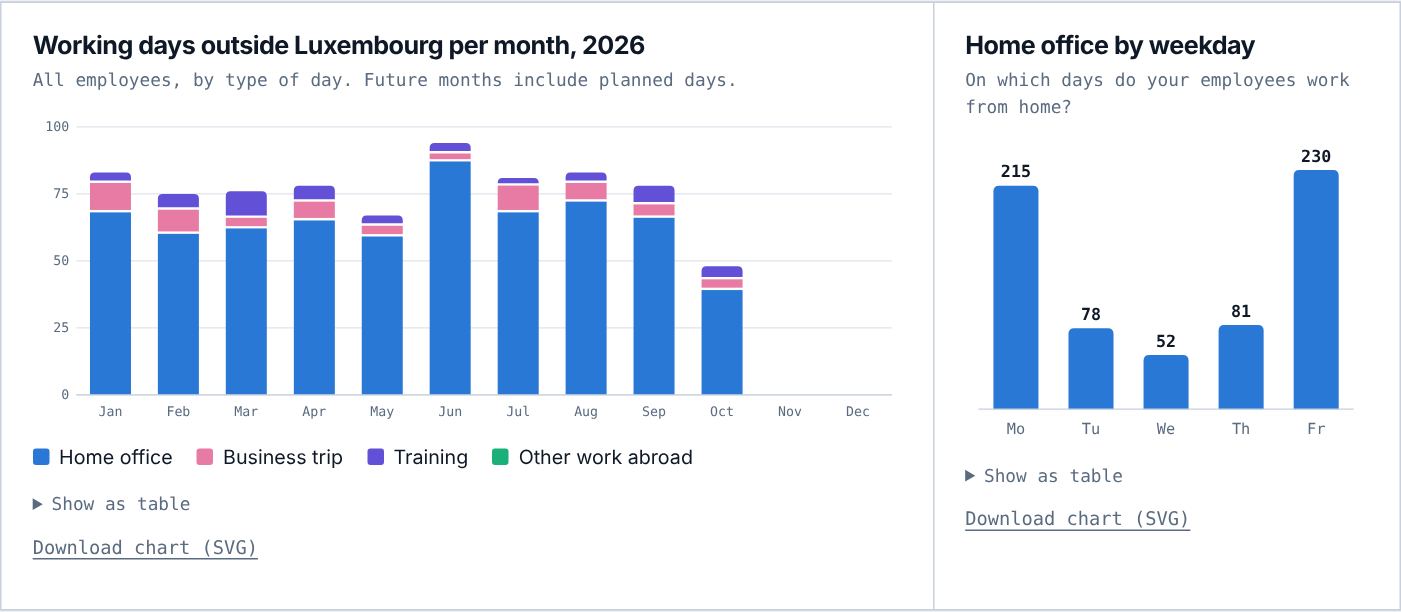
Useful for management meetings: breakdown by month and type, and the most popular home office days. Each chart can be downloaded as SVG and also shown as a table.
Instant alerts
As soon as an entry (HR, link or app) crosses a line, an email “Home office threshold: …” goes to the alert address:
| Alert | When |
|---|---|
| Only X days left | The employee has 5 days or fewer left (alert threshold). If the same entry goes straight over, only the exceeded alert is sent. |
| Tax threshold exceeded | The employee goes over their threshold. |
| Social security | Home office exceeds the 49.9 % limit. |
| Quota exceeded | A period goes over the internal rule. |
Each alert is sent only once per employee per year; if the counter drops again (day deleted), it can be sent again later. If you turned it on, the employee gets a copy.
The weekly report
Every Monday morning, a summary: employees over the threshold, close, budget used up within six weeks, over the internal rule, and how many employees recorded their own days. Otherwise: “Everything is on track”. Can be turned off in the settings. It is not sent when access has expired or there are no active employees.
8Exports and records
For payroll, the tax authorities and your archive. Exports remain available even after the subscription ends.
| Export | Where | Contents |
|---|---|---|
| Overview CSV | Overview → CSV | One row per active employee: threshold, used, left, breakdown by type, CCSS, internal, projection, status. For Excel (semicolon separator). |
| Overview PDF | Overview → PDF | Dated landscape table, overruns in red. For management or the file. |
| Annual statement PDF | Employee record → Annual statement (PDF) | Statement for the year: personal threshold, days per month with their type, social security, and two signature lines (employee and employer). |
| Days CSV | Employee record → CSV | Every day with type, source, author and time recorded. |
| All days CSV | Settings → Delete account → Back up all days as CSV | All years, all employees, archived ones included (owner only). |
| Charts SVG | Below each chart | For a presentation. |
9Users, permissions and log
Several people from HR, payroll or management can work together at no extra cost.
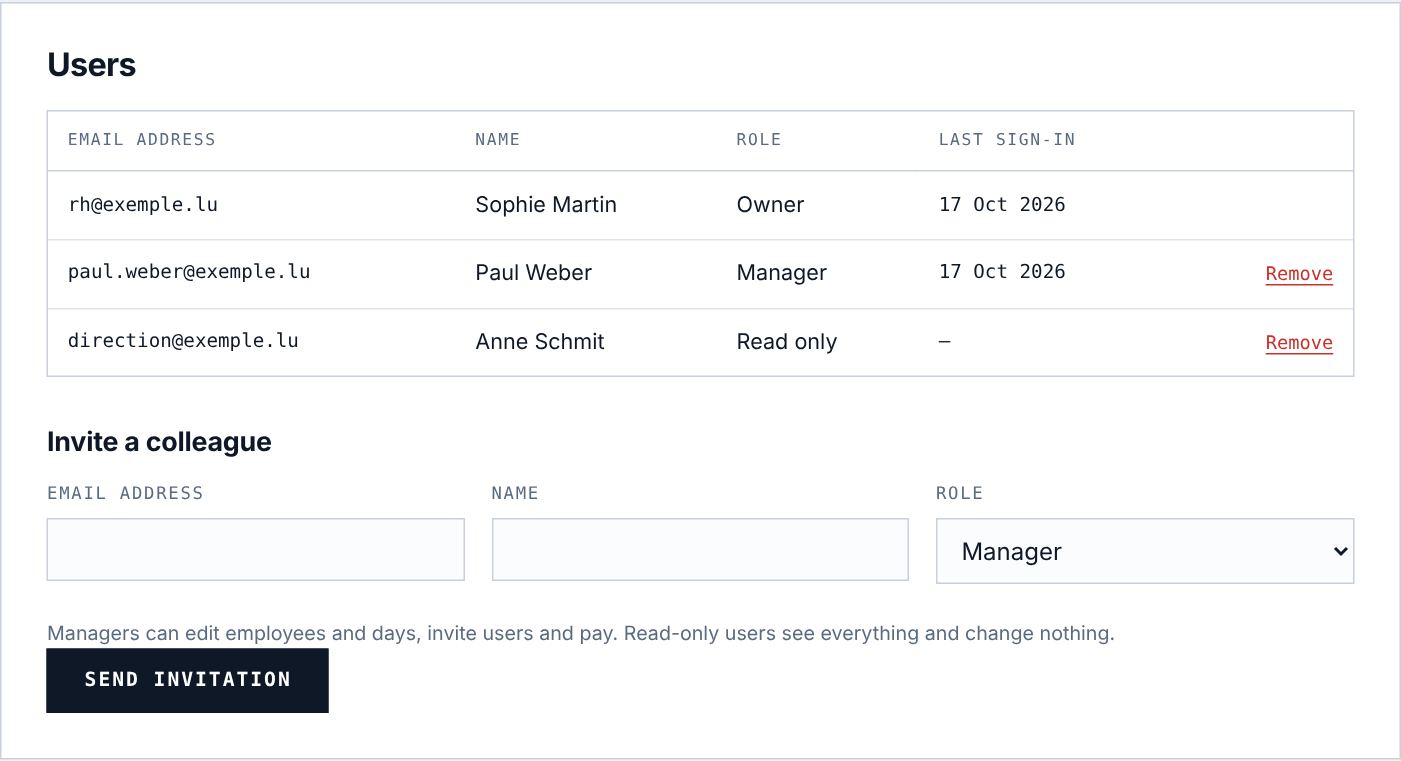
| Role | Can |
|---|---|
| Owner | Everything, including deleting the account. This is the person who created the account. |
| Manager | Edit employees and days, rules and company details, invite and remove users, order and pay. |
| Read only | See and export everything, change nothing. Doesn’t see billing. Ideal for management or an accountant. |
- Settings → Users → Invite a colleague.
- Enter the email address, name and role, then Send invitation.
- The colleague receives an email valid for 7 days, chooses a password and gets access.
- The number of users is unlimited and doesn’t affect the price.
- An email address can only belong to one company account.
- An invitation not yet accepted can be sent again; Remove withdraws a user’s access (except the owner).
- My account: everyone changes their own name and password here.
The log
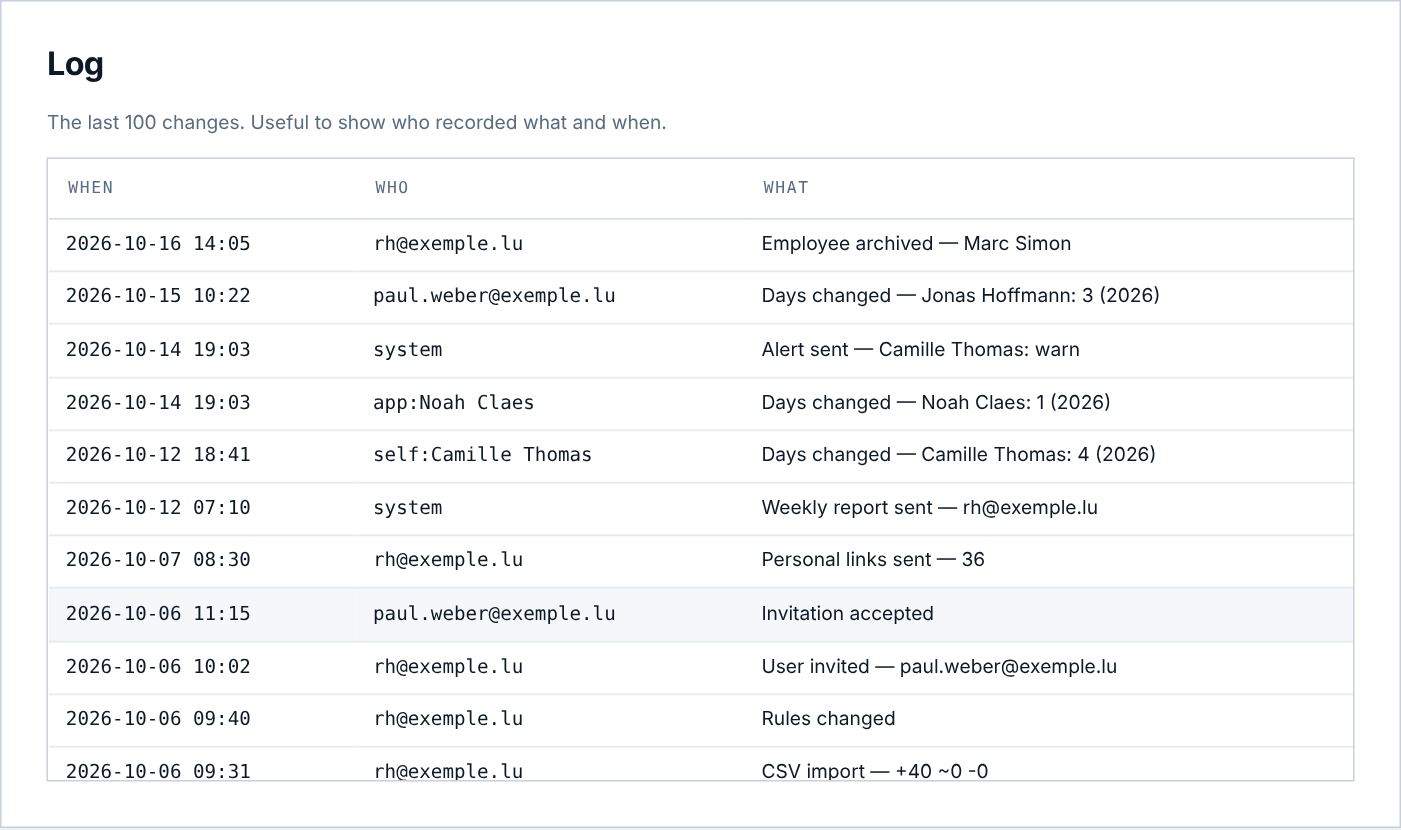
The last 100 changes with date, author and action: employees added, days changed (by HR, by the employee as “self:” or by the app as “app:”), links sent, alerts, payments… Useful to establish who recorded what and when.
10Subscription and billing
Prices, ordering online or by invoice, automatic renewal and one-click cancellation.
The price
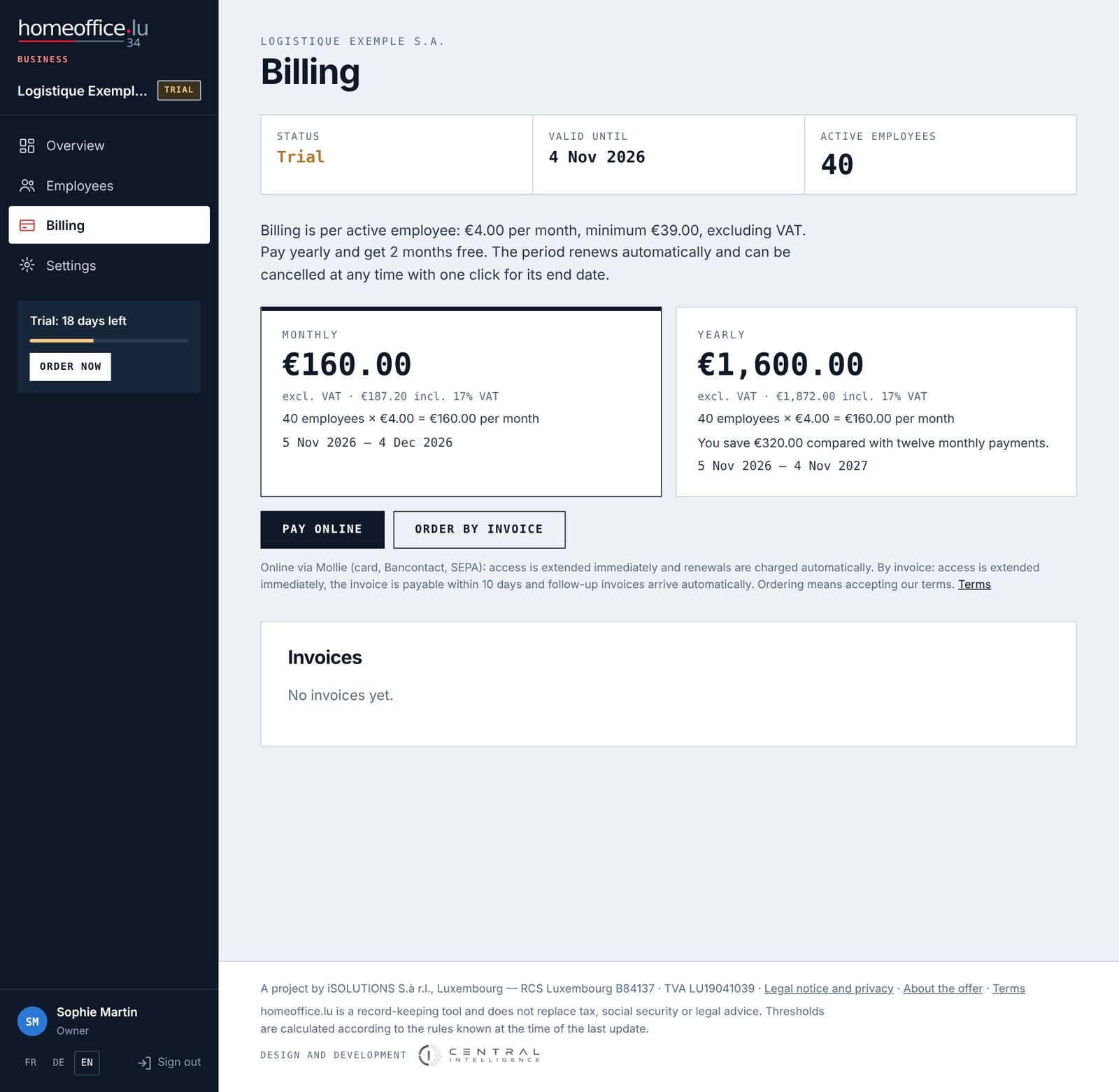
€4.00 per active employee per month, minimum €39.00 per month, plus VAT (17 %). The minimum covers up to 9 employees. With yearly payment, 2 months are free (you pay for 10). Archived employees are not billed; HR users are unlimited.
| Active employees | Monthly excl. VAT | Monthly incl. VAT | Yearly excl. VAT | Yearly incl. VAT |
|---|---|---|---|---|
| 5 | €39.00 | €45.63 | €390.00 | €456.30 |
| 25 | €100.00 | €117.00 | €1,000.00 | €1,170.00 |
| 40 | €160.00 | €187.20 | €1,600.00 | €1,872.00 |
| 120 | €480.00 | €561.60 | €4,800.00 | €5,616.00 |
Active employees are counted on the day of the order or renewal.
Ordering
- Check the billing address (Settings → Company): without it, ordering is blocked.
- Billing: choose Monthly or Yearly.
- Click Pay online (card, Bancontact… via Mollie) or Order by invoice.
- Online: access is extended as soon as the payment is confirmed. The payment method is stored for renewals.
- By invoice: access is extended immediately; the invoice arrives by email and is payable within 10 days by bank transfer.
- The new period starts the day after the end of the trial or paid period: ordering early loses you no days. You can order at the earliest 31 days before expiry.
Automatic renewal and cancellation
Unless you act, the subscription renews for the same length. You receive a notice 30 days before expiry (yearly payment) or 10 days before (monthly), with the amount. You can cancel in one click up to 3 days before the end of the period, that day included.
Under Next period you can switch from monthly to yearly (or the other way round) for the next renewal, up to the cancellation deadline. While renewal is active, the order buttons are hidden: there is nothing to order.
If the charge fails
If the stored payment method is no longer valid, the next period is automatically invoiced for bank transfer. If the bank declines the charge, you receive the email “Payment failed”: access then runs until the end of the paid period; order again under Billing to extend it. While a charge is still being processed, access stays open for up to 10 days after expiry.
When access ends
If the trial or paid period ends without an order, the account becomes read-only: you can see and export everything but can no longer make changes; employees can no longer record days through links or the app. Nothing is deleted. An order restores everything immediately.
Invoices
The Invoices list shows number, date, period, amount incl. VAT and status (open or paid), with the PDF; for public bodies also the Peppol XML file. Each invoice is emailed to the Email invoices to address (empty = owner).
11Data, security and deletion
Who sees what, what is stored and how to delete everything.
- No location is ever sent: only the date and type of days (and an optional note in the app).
- Each company sees only its own data; employees see only their own.
- Passwords are stored encrypted; single-use access links (confirmation, password, invitation) expire.
- Employee photos are optional, visible only to the company’s users and to the employee, who can also add or remove it. Only add one with their consent.
- A data processing agreement (Article 28 GDPR) is available on request at hello@homeoffice.lu.
Deleting the account
- Owner only: Settings → Delete account.
- First use Back up all days as CSV.
- Type the company name to confirm, then Delete permanently.
Employees with their days and photos, users and the log are deleted. If invoices have been issued, they are kept together with the company details, as the law requires.
12Frequently asked questions
Do holidays and office days need to be recorded?
No. Only working days outside Luxembourg are recorded. Anything not recorded does not count towards the threshold.
An employee recorded a wrong day. What now?
Correct it in their record: HR can change every day. Your entry then becomes an HR entry, which the employee can no longer change.
Can the employee change a day entered by HR?
No, neither through their link nor in the app. HR entries take precedence; the employee sees the day but has to ask you for a correction.
An employee goes from 100 % to 80 % during the year.
The threshold is calculated from the working time in the record, for the whole year. Enter the average working time for the year (for example 90 %) or follow your tax adviser’s guidance, and note it in the internal note. Note: the record applies to all years; changing the working time also changes past years’ figures. Export the statements concerned first.
What about an employee living in Luxembourg?
They have neither a tax threshold nor a CCSS limit (status “No threshold”). The internal rule does apply to them, though.
An employee joined during the year.
Enter the start date: threshold and working days are reduced pro rata, and days before the start are blocked.
What does a leaving employee cost?
Nothing once archived. Keep them archived rather than deleted so the history is kept.
Can homeoffice.lu connect to our payroll software?
Through files: CSV import of employees from payroll, CSV export of days and the overview to payroll or Excel. There is no public programming interface at the moment.
We are a public body.
Tick “public body” in the company settings: every invoice is then also available as Peppol XML, with your purchase reference. For purchase orders or tenders, write to us.
The trial is ending. Will we lose our data?
No. Without an order, the account becomes read-only; everything stays visible and exportable. An order restores full access immediately.
Can’t find the answer?
Write to us at hello@homeoffice.lu. We reply in English, French, German and Luxembourgish, usually the same day.